
Get into your portal
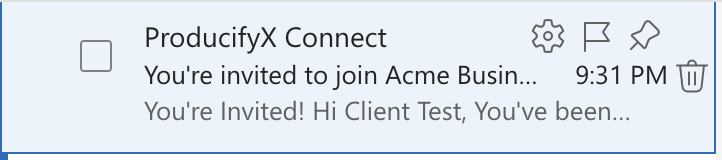
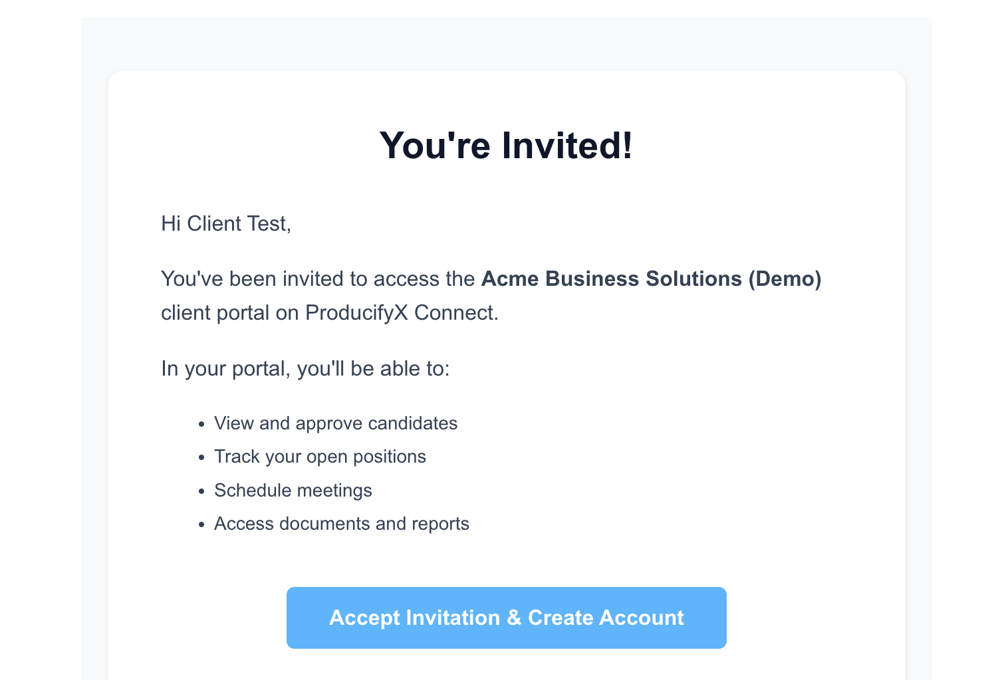
You'll receive a You're invited to join [your company] email from ProducifyX Connect. In your portal, you'll be able to view and approve candidates, track your open positions, schedule meetings, and access documents and reports.
Getting started
- Click Accept Invitation & Create Account in the email
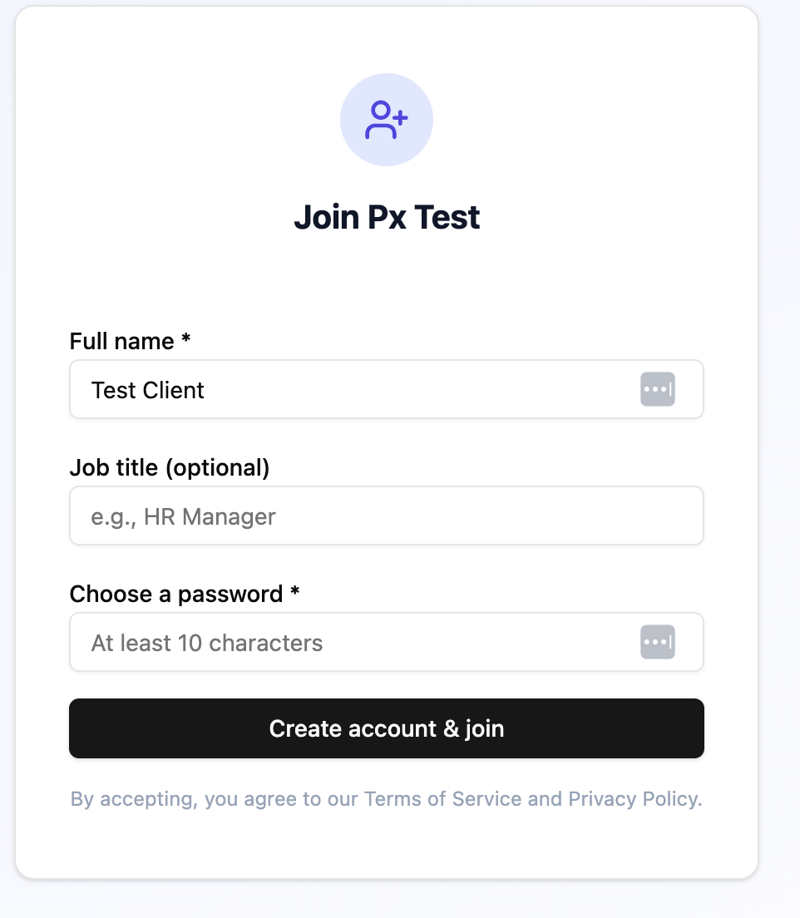
- Create your account with the email address the invitation was sent to: enter your full name, job title (optional) and a password of at least 10 characters, then click Create account & join
- Complete your profile setup
- You'll be redirected to your dashboard
The invitation expires in 7 days. After that, log in anytime at connect.producifyx.com.
Your onboarding checklist and team
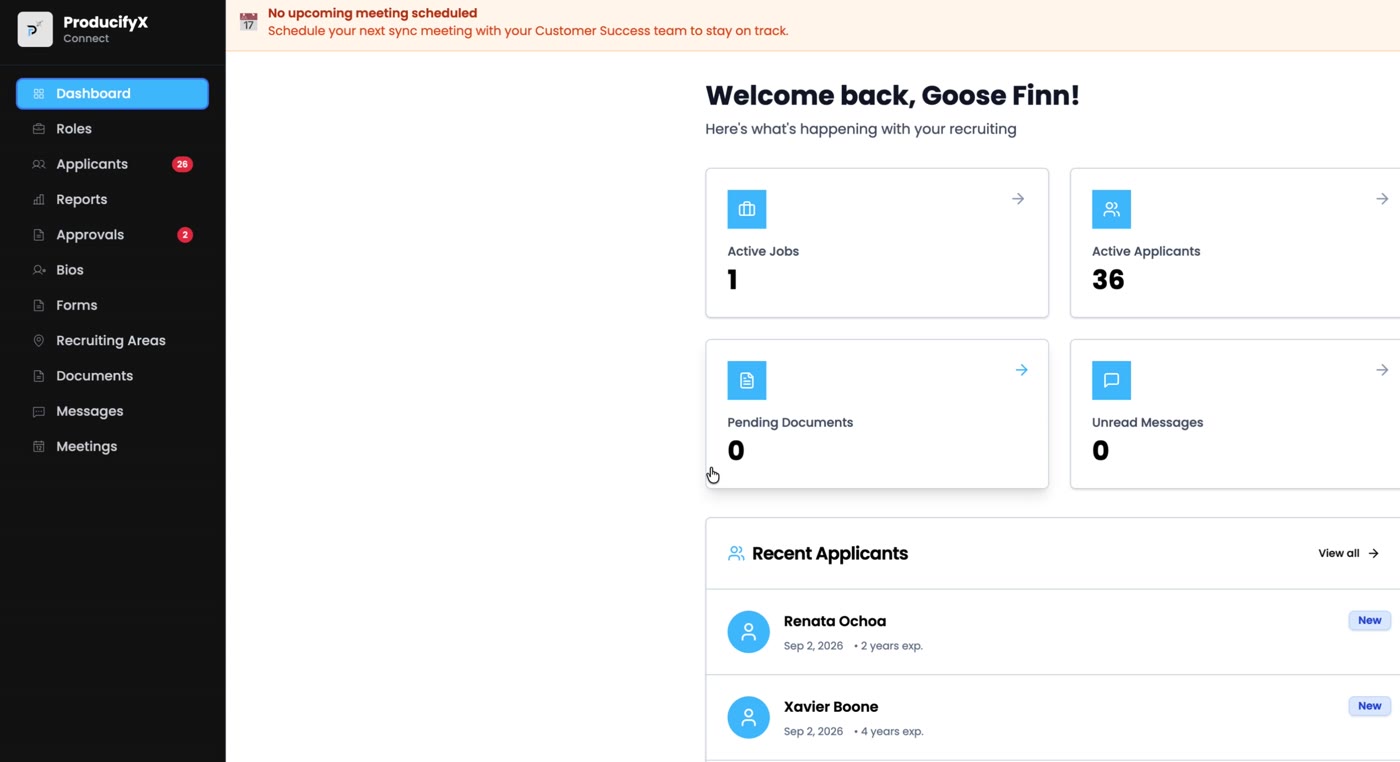
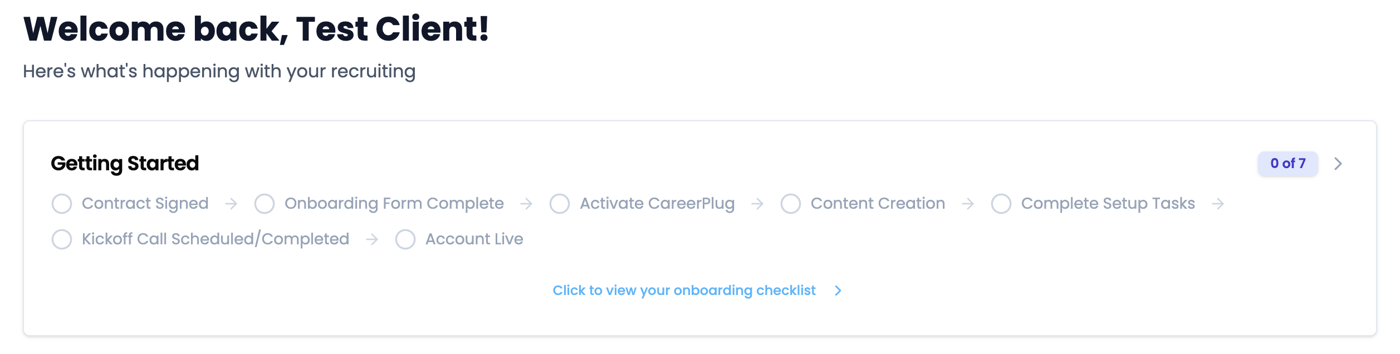
Your dashboard opens with a Getting Started checklist so you can see where your account is in setup:
- Contract Signed
- Onboarding Form Complete
- Activate CareerPlug
- Content Creation
- Complete Setup Tasks
- Kickoff Call Scheduled/Completed
- Account Live
Use the Click to view your onboarding checklist link to open the full checklist.
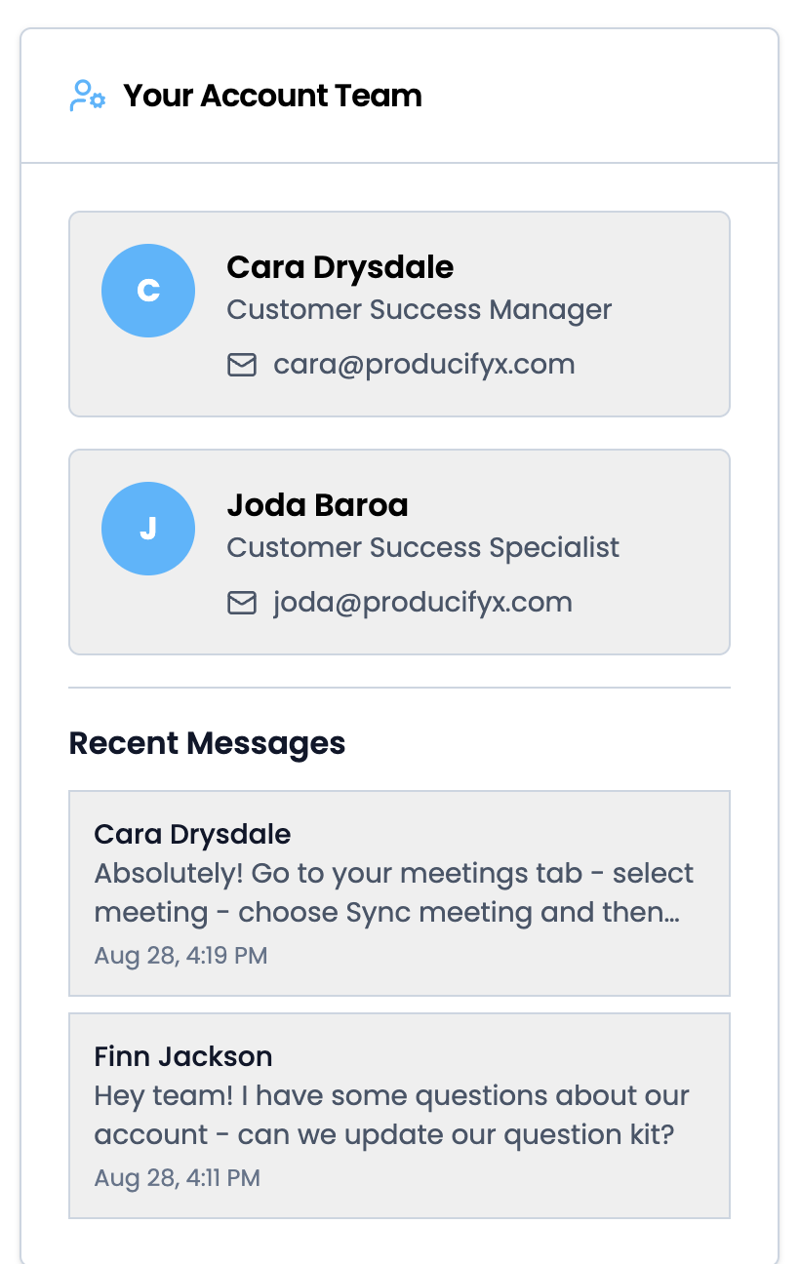
Your Account Team shows your Customer Success Manager and Customer Success Specialist, with their email addresses, so you always know who to reach. Your recent messages with them show up right below.
Candidate applies
What do they see?
Candidates receive two emails from ProducifyX Connect:
- [Your company] Application Received – Please Review: a thank-you from PX, as your recruiting partner, on behalf of your company, letting them know their next step is a short, self-paced pre-interview they can complete from their phone or computer.
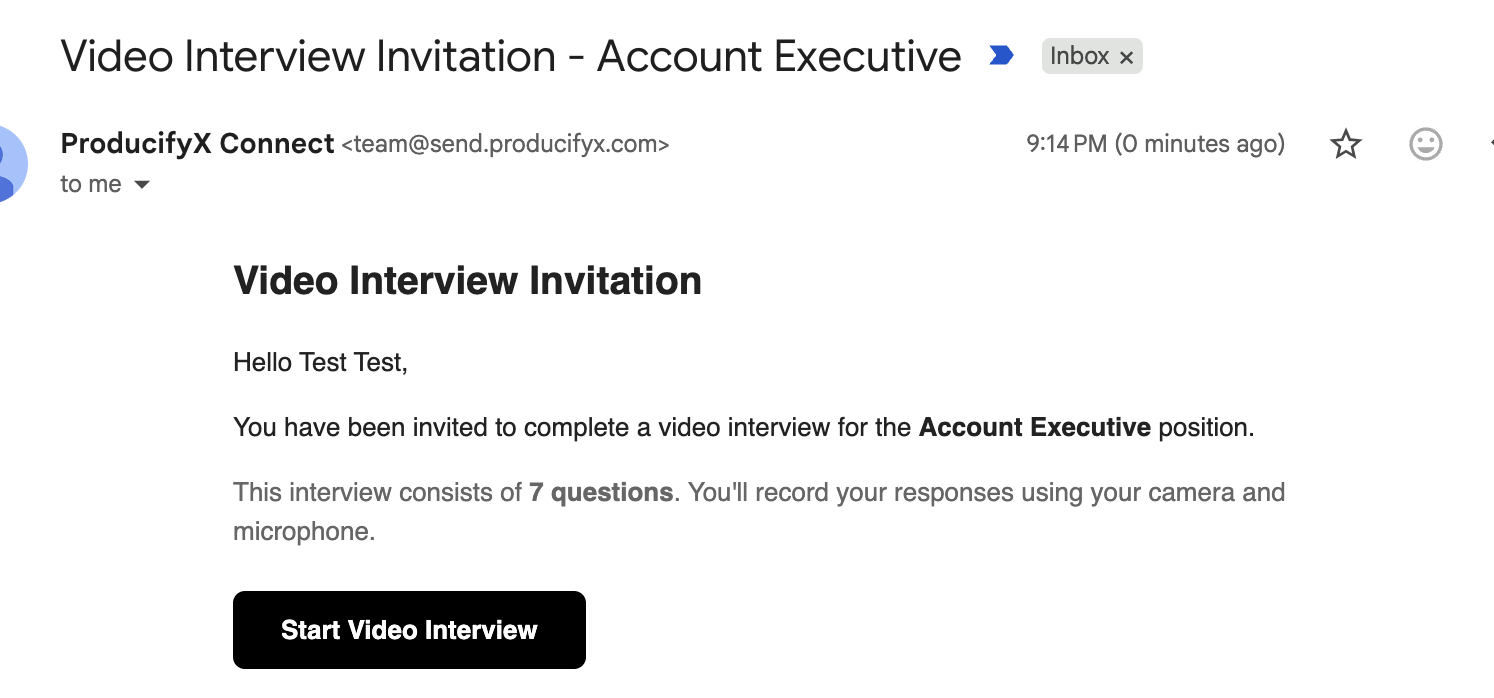
- Video Interview Invitation – [Job title]: a Start Video Interview button that takes them straight into their interview.

Inside the interview
The Start Video Interview button takes candidates to an interview page built for your role. Here's what they walk through. The question count, time and limits come from this example role.
-
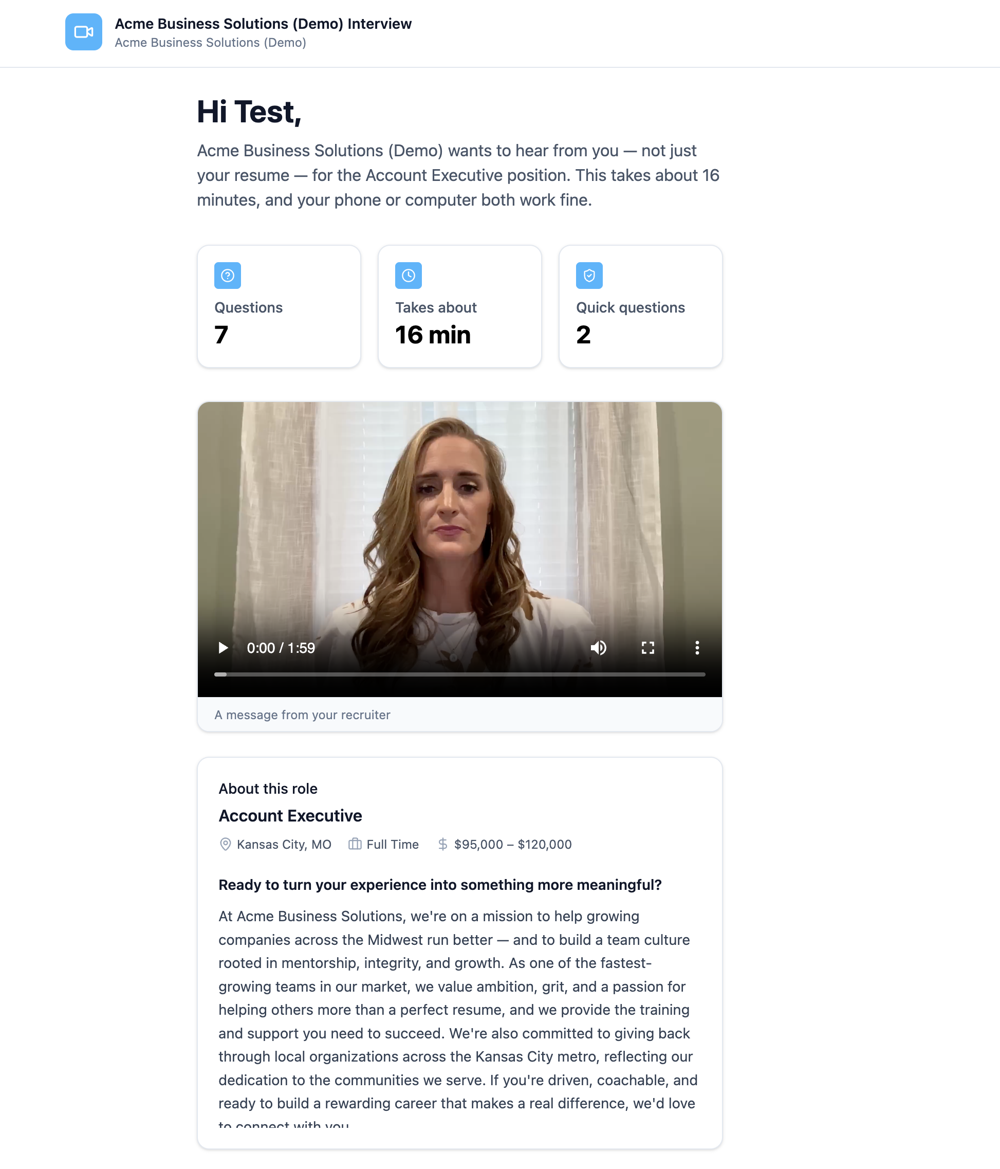 Welcome pageHow many questions, how long it takes (about 16 minutes here), a video message from PX, and the role details: location, schedule, pay range and description. Phone or computer both work.
 -
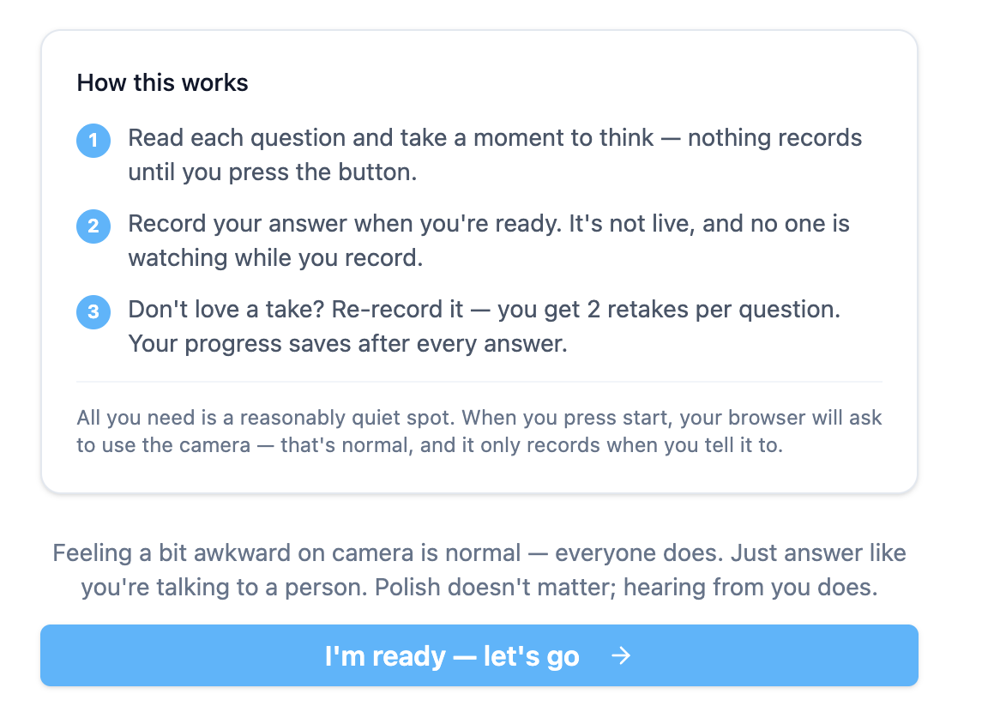 How this worksNothing records until they press the button. It's not live, and no one is watching. They get 2 retakes per question, and progress saves after every answer.
 -
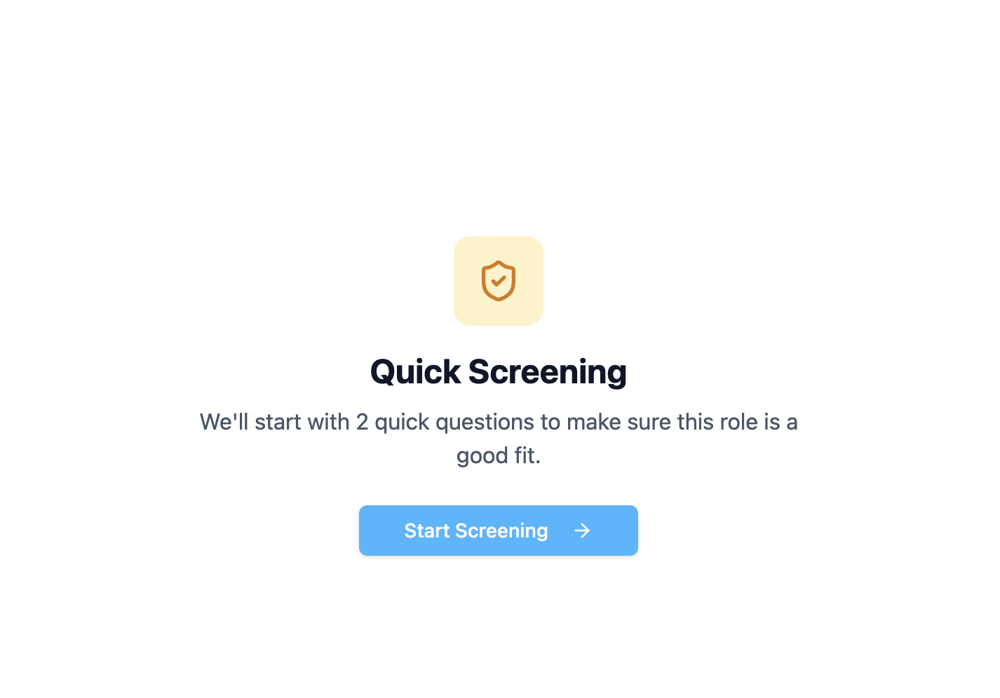 Quick screeningA couple of quick questions first, to make sure the role is a good fit.
 -
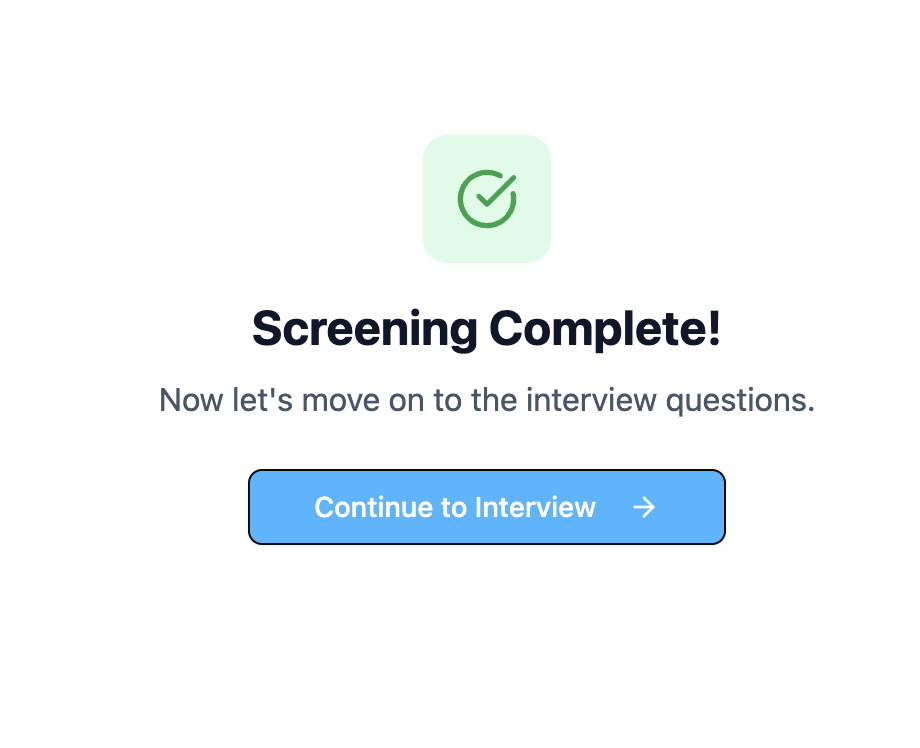 Screening completeThen they continue on to the interview questions.
 -
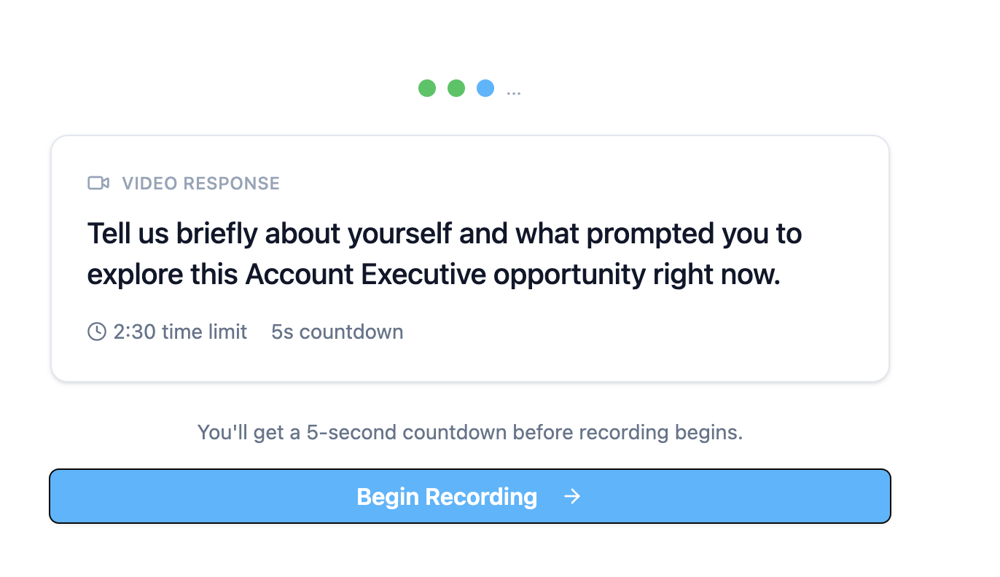 Video responsesOne question at a time. Each shows its time limit (2:30 here), with a 5-second countdown before recording begins.
 -
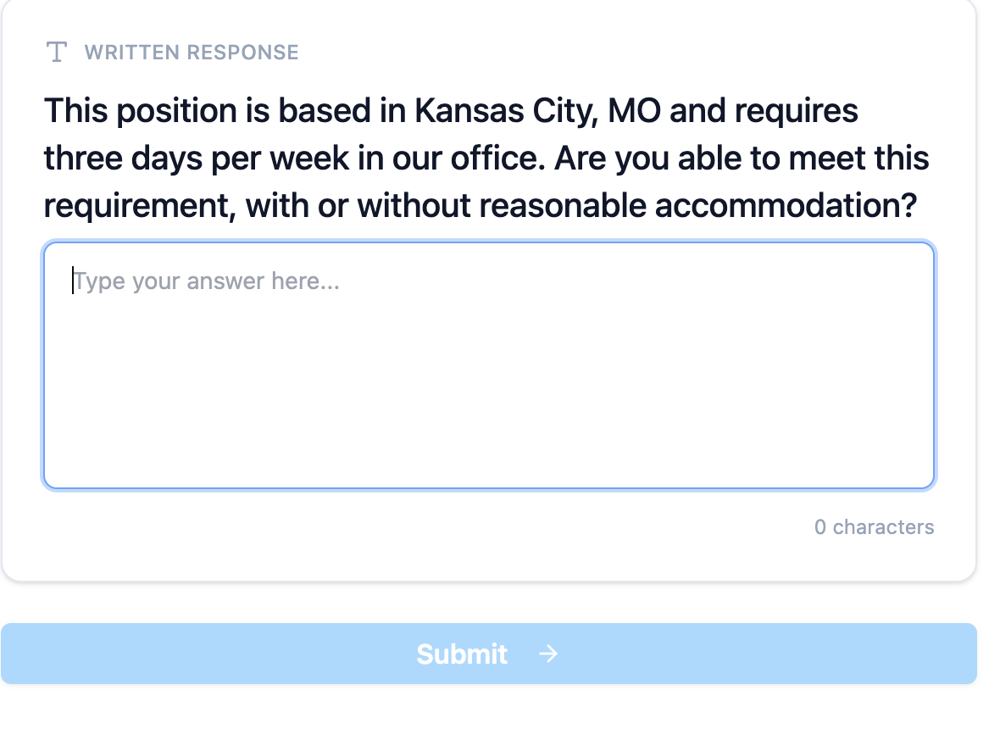 Written responsesFor written questions, they type their answer and submit.
See an example answer
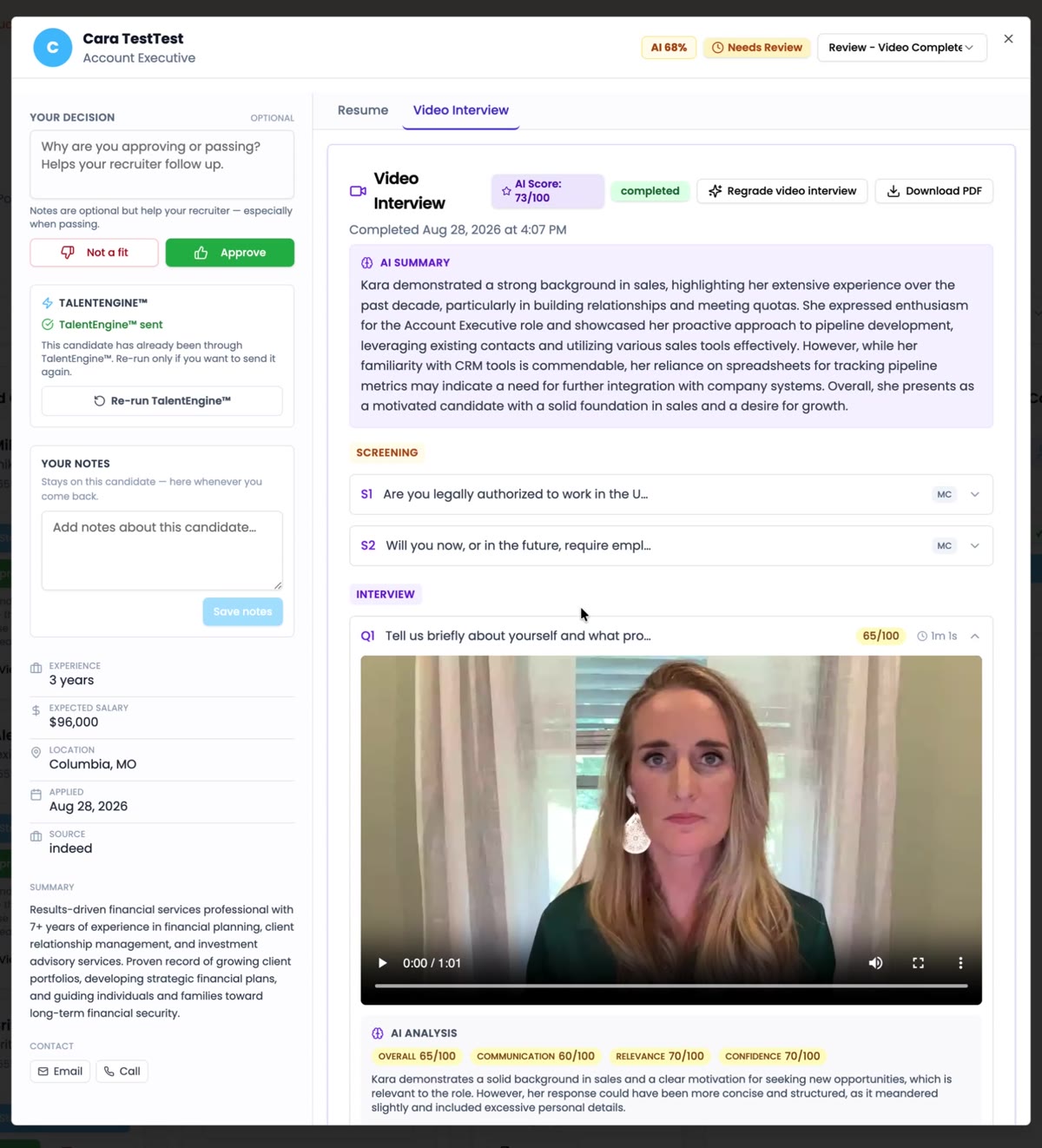
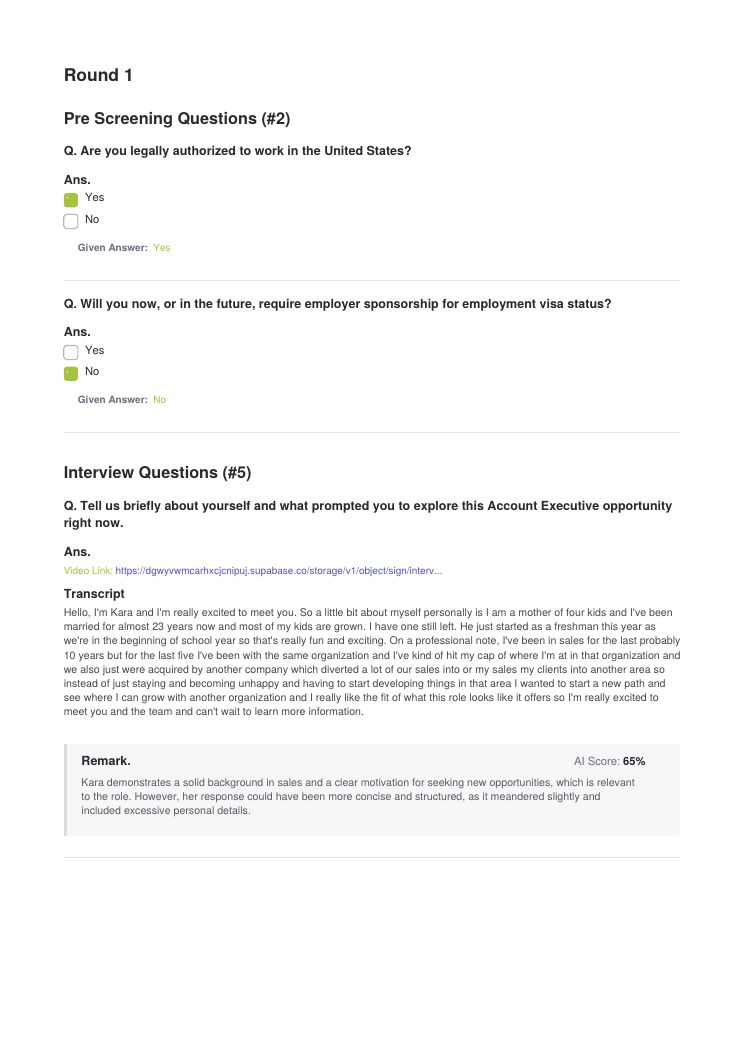
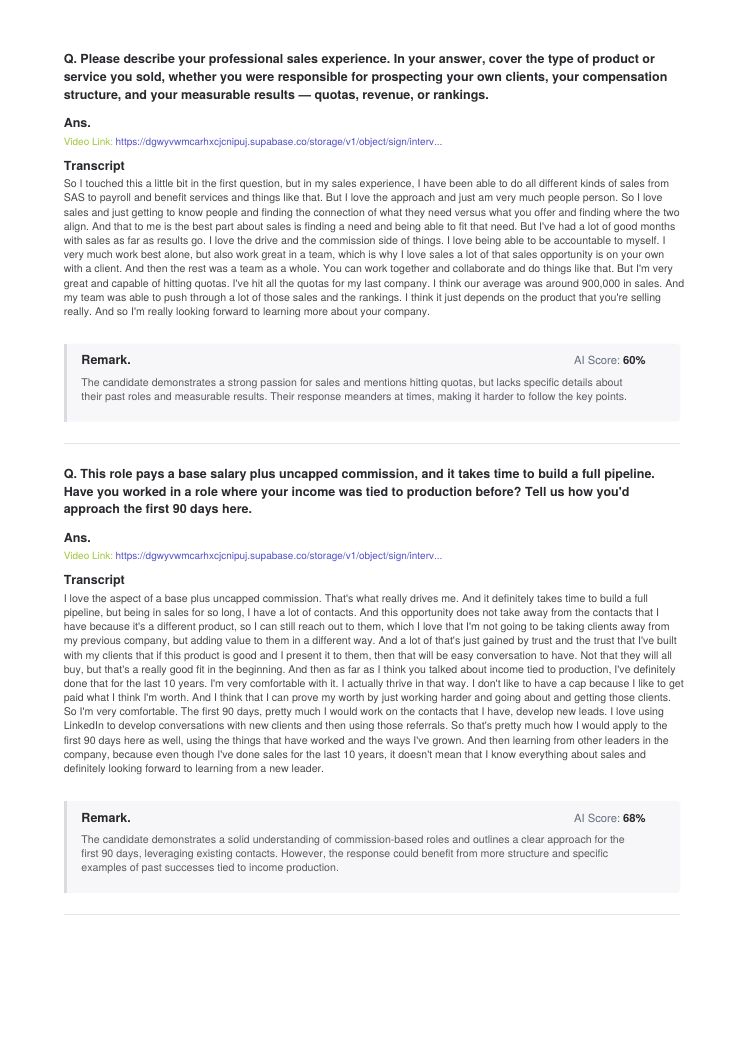
A candidate's recorded answer to "Tell us briefly about yourself." Every answer, recorded or written, gets an AI score and a short remark.
Your dashboard
Take a quick tour of your portal: your dashboard, recruiting areas, team bios, job boards and reports.
You received a candidate. Now what?
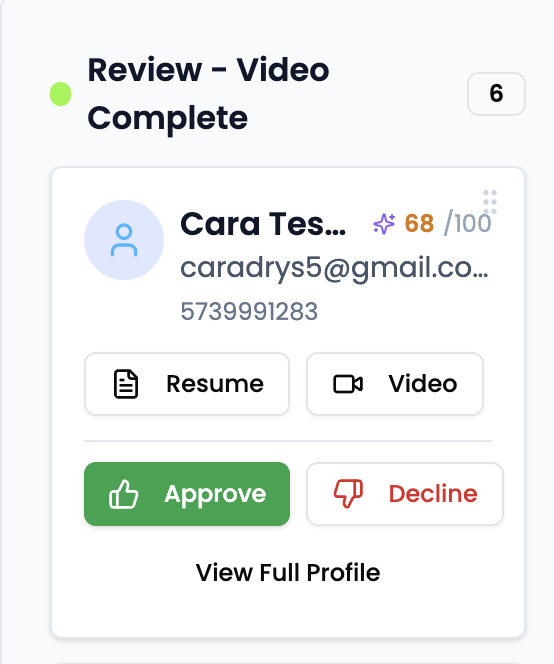
Each candidate shows up as a card with their AI score. Open their Resume or Video right from the card, or choose View Full Profile to see everything.
The full profile has the AI summary, screening answers, each interview answer with its transcript and score, and space for your notes.
Your feedback
Approve or Decline
Approve or decline right from the candidate's card, or open View Full Profile to review everything first.
Download the candidate package
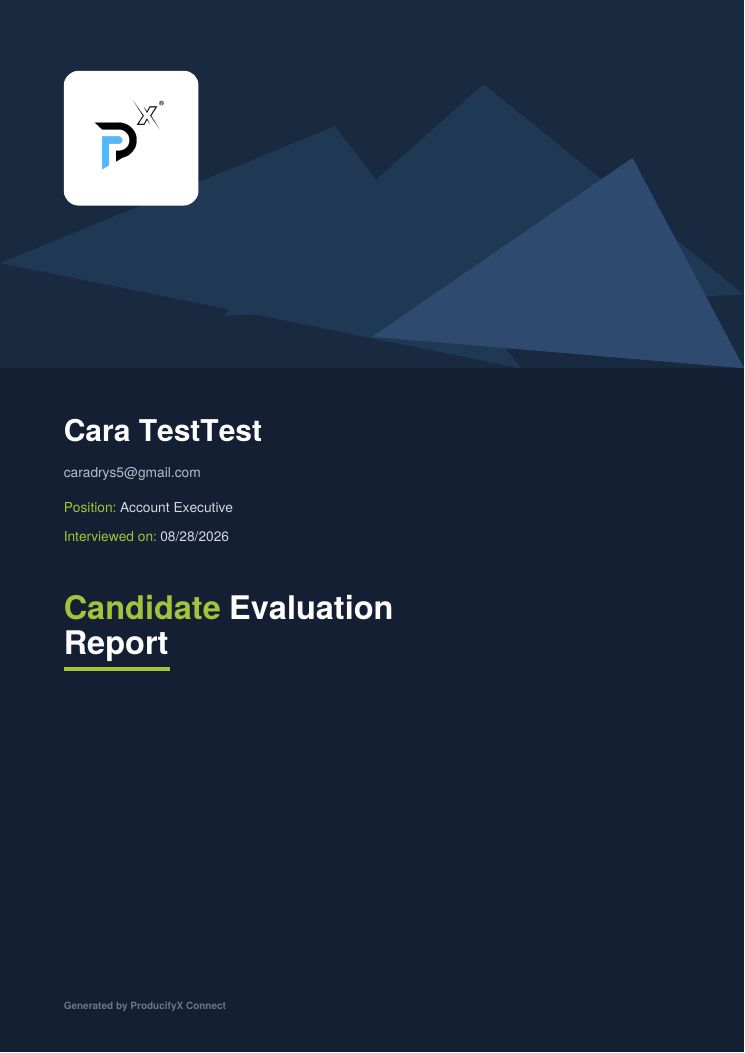
Every candidate who completes the PX process comes with a Candidate Evaluation Report you can download as a PDF from their profile. It includes:
- Screening answers
- Each interview question with a video link or written answer, the transcript, and an AI score and remark
- Total time taken, questions attempted and total AI score
- An AI summary of the candidate
Second Chance: candidates who don't complete the PX process show up in your Second Chance column. If you like their resume, you have the opportunity to reach out to them.
Excited to kick things off with you!